Can you fix a picture without starting over? Yes. The image editor lets you crop it, clean it up, change a detail, or lift part of it out, and your original is always kept safe.
Where to find it
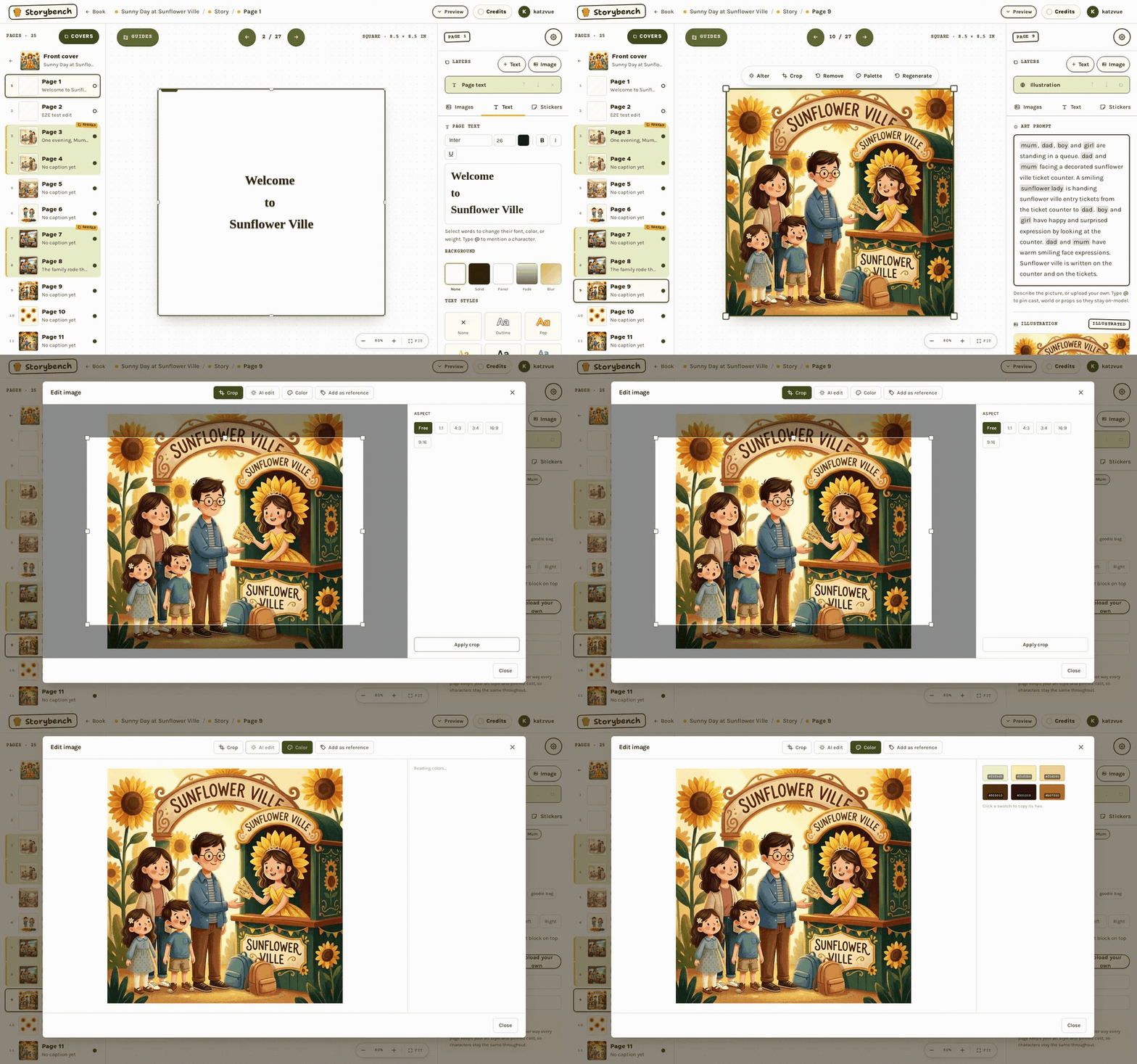
Look for an Edit image button wherever a picture appears: in a page's art panel, on a cover, on an overlay image you added to a page, and, on the reference pictures of a character, setting, or prop, a small pencil icon on the picture (the edited version is added as a new reference). On the page canvas there is also a quick strip of shortcuts (Alter, Crop, Remove, Palette, Regenerate) above the picture.
The tools
The window opens with a row of tools along the top:
- Crop. Drag the box to frame the part you want, or pick an aspect: Free, 1:1, 4:3, 3:4, 16:9, or 9:16. Press Apply crop. Cropping is free.
- AI edit. Choose Remove background, Remove object (say what to remove, such as "the red car"), or Alter (describe the change, such as "make it sunset"), then press Apply edit. It takes about 15 to 30 seconds, and it uses one image generation's worth of credits. Your characters and art style are kept. If it fails, the credit is refunded.
- Color. Lists the main colours in the picture as swatches. Click one to copy its colour code, handy for matching text or a background. Free.
- Add as reference. Crop part of the picture and save it as a reference for a setting, a prop, or a character, or just to your image library. This one appears when you open the editor from a page, a cover, or an overlay image.
Nothing changes until you say so
Edits happen on a copy. You can chain several (crop, then remove an object, then crop again), and the page or cover only changes when you press Use this image. The edited picture is saved to your World's gallery as a new image, and the original stays there too, so you can always go back to it with Choose an image (on a cover, Choose from generated). Not happy? Press Cancel (the button reads Close until you have made a change) and nothing is applied.
Because AI edits use credits and need a membership or your welcome credits, see browsing and costs. For the pages themselves, see writing and illustrating pages.