Can you put your finished book on your own website, so visitors can read it right there? Yes. You paste one short snippet into your page, and your book appears as a page-flip book, a bit like a video you would embed from YouTube. There are no extra costs, no credits, and nothing to install.
Where to find it
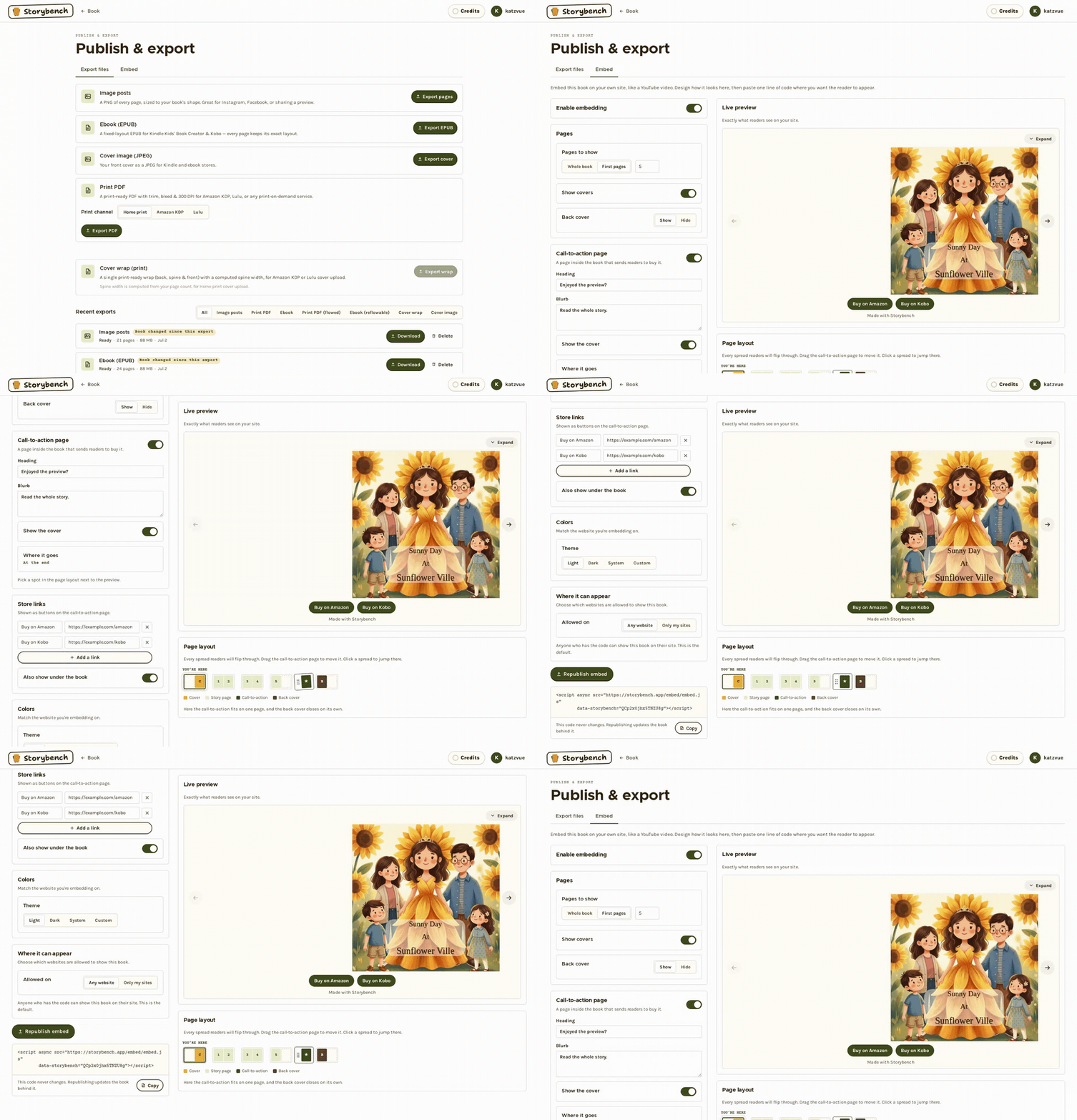
Open your book, press Publish, and choose the Embed tab next to "Export files". Embedding is switched on for every account, and your book needs at least one page.
The short version
- Turn on Enable embedding.
- Adjust the settings below to taste. They save by themselves a moment after you change them, and the Live preview displays exactly what readers will see.
- Press Publish embed. We prepare your pages in the background.
- Press Copy under the snippet, which is a short script tag that looks like this:
<script async src="https://storybench.app/embed/embed.js" data-storybench="your-code"></script> - Paste it into your website wherever you want the book to appear. Anywhere your site lets you add custom code will do.
That code never changes. When you update your book later, press Republish embed and the book behind the same snippet is refreshed.
What readers see
The book opens on its cover. On a wide screen it opens up into two-page spreads, and on a phone it flips one page at a time. Readers can press the arrows, use the left and right arrow keys, or drag the page corner. Underneath the book, a small "Made with Storybench" link always appears. We keep that link on every embed and it cannot be turned off.
Design it your way
Pages
Choose Whole book, or First pages and say how many, which makes a free sample that leaves readers wanting more. A switch decides whether the covers are included, and Back cover lets you keep or hide the back one.
Call-to-action page
This is an extra page inside the book that sends readers to buy it. Turn it on, then write a Heading (up to 60 characters, "Enjoyed the preview?" to start) and a Blurb (up to 240 characters). You can include the cover, and the facing page carries your store buttons. By default it sits at the end. To move it, drag it to a different spot in the Page layout strip beside the preview.
Store links
Add up to eight links, each with a label (such as "Buy on Amazon") and a web address, using Add a link. They become buttons on your call-to-action page, and you can also repeat them under the book. Rows left half empty are quietly dropped when we save.
Colors
Match the website you are embedding on. The theme can be Light, Dark, System (which follows the reader's own device setting), or Custom. Custom lets you pick the Frame background, the Button color, and the Call-to-action page color, or switch on Transparent frame to let your site's own background through. We choose a readable text colour for you.
Where it can appear
By default, Any website that has your snippet can display the book. If you want to keep it to your own places, choose Only my sites and add each one with Add a site. Type just the site name, like yoursite.com, with no https:// and no page path. To include every subdomain, start with *. (for example *.mayaschool.org). Note that *.mayaschool.org covers the subdomains but not mayaschool.org itself, so add both if you want both. You can list up to 20 sites. Changes reach readers within about five minutes, with no republish needed. This keeps other sites from displaying your book, but it does not protect the page images themselves, so treat an embedded book as public.
What updates by itself, and what needs a republish
Changes to your pages, how many pages to include, and whether covers are included need Republish embed. A note on the tab tells you when your book has changed since you last published. Colours, the call-to-action page, store links, and allowed sites update on their own, usually within a minute or so (allowed sites can take up to five).
Turning it off
Switch Enable embedding off and the book is taken down. Anywhere you pasted the snippet, readers see "This book isn't available right now." Your snippet stays the same, so if you switch embedding back on and press Publish embed again, every place you pasted it works again. If you delete the book, its embed goes offline within about a minute, and restoring the book brings it back. The page images stay on a public web address either way, so treat an embedded book as public.
Want files instead? See export formats. Heading to a store? See book details and ISBN.